


TG Macro is a Windows automation tool for recording and repeating keyboard presses, mouse clicks, cursor movements, and timed actions. It works well for repetitive tasks where the same input sequence needs to run more than once.
A macro recorder and editor for Windows.
TG Macro is a macro recorder and editor for Windows. It lets you create a sequence of keyboard and mouse actions, assign that sequence to a shortcut, and run it whenever needed.
You can record actions as you perform them or add each command manually. Recorded actions can also be edited, reordered, copied, or deleted before the macro is saved.
The software offers more control than a basic auto-clicker, but its interface takes a little time to understand. Once you learn the trigger settings, action editor, and recording controls, creating a simple macro becomes fairly straightforward.
A practical set of tools for recording, editing, and running keyboard and mouse sequences on Windows.
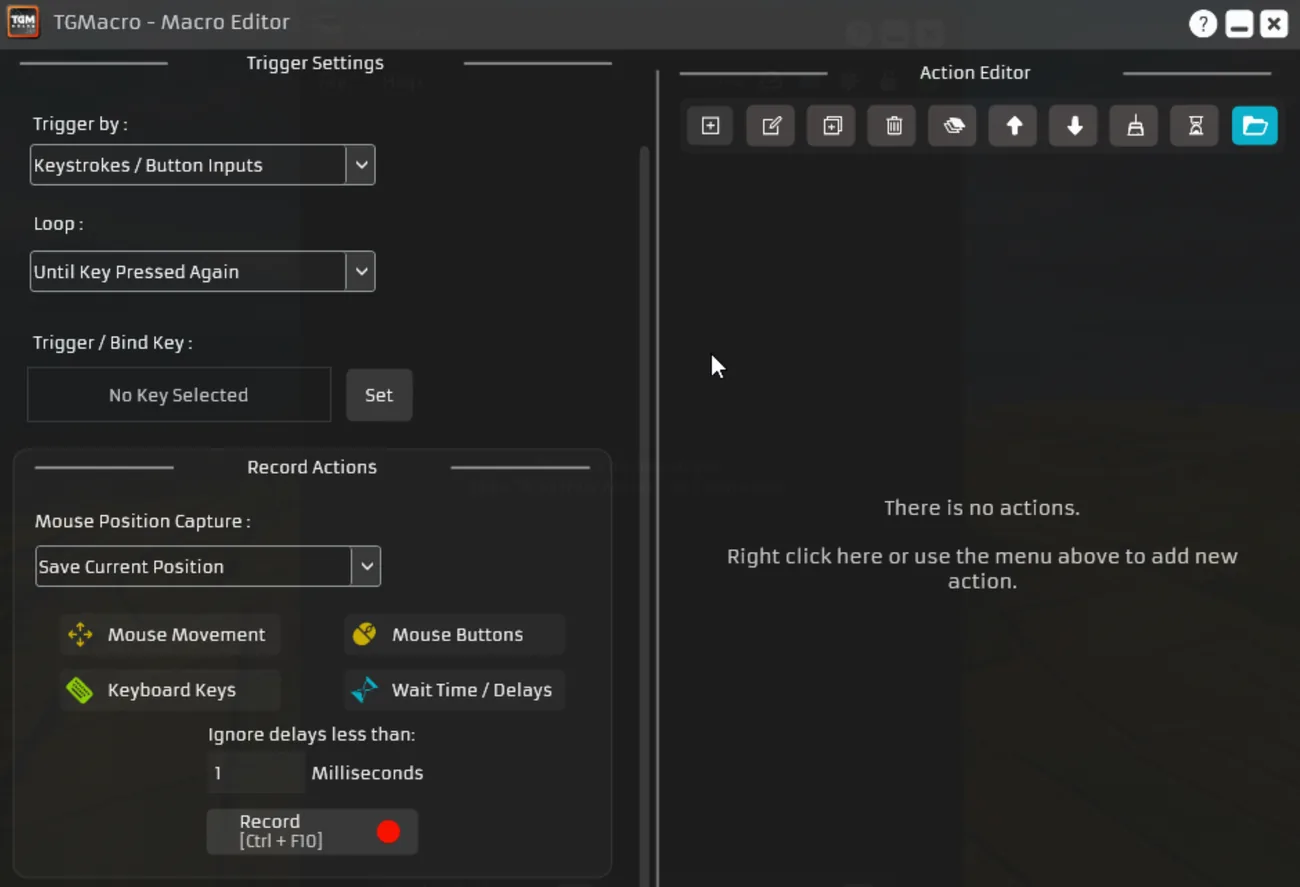
The Macro Editor displays trigger controls on the left and the action list on the right. You can add, edit, copy, delete, and rearrange commands without recording the whole sequence again.
The interface looks busy at first, and some toolbar icons aren’t immediately obvious.
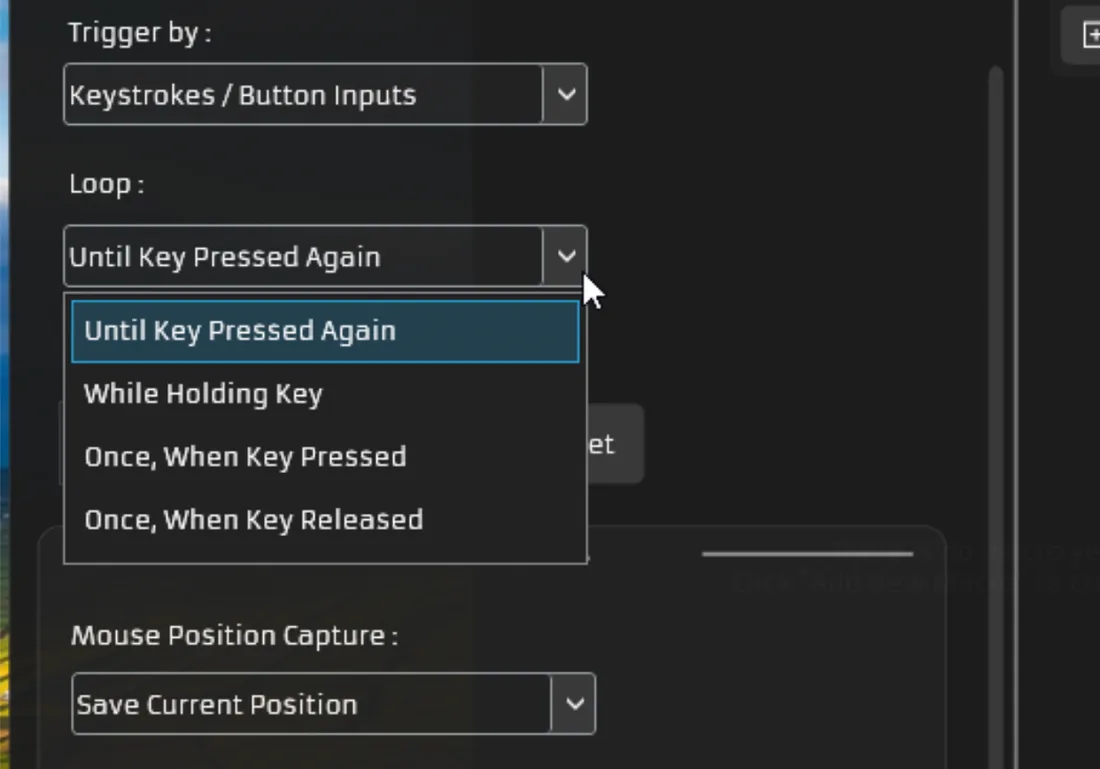
It supports keyboard inputs, button inputs, and color or pixel changes.
A macro can run while you hold a key, continue until the key is pressed again, run once when pressed, or run once when released. The hold option is usually easier for testing because releasing the key stops the macro.
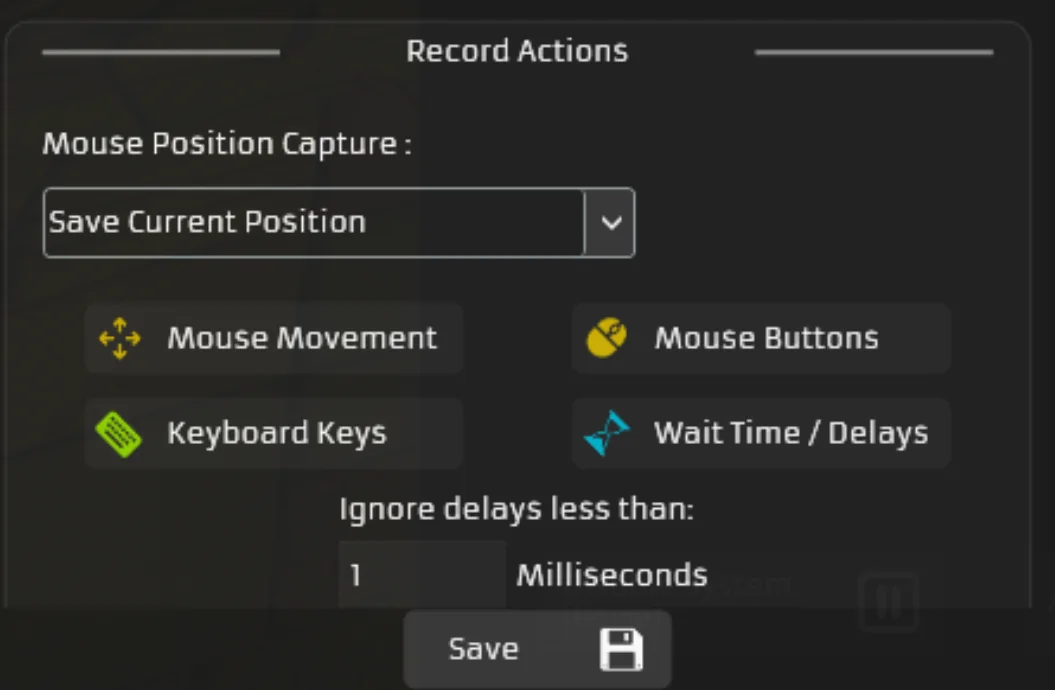
A macro can include keyboard presses, mouse clicks, pointer movement, and timed delays.
Delays are useful when the target application needs time to respond. Without them, the sequence may run too quickly and skip an action.
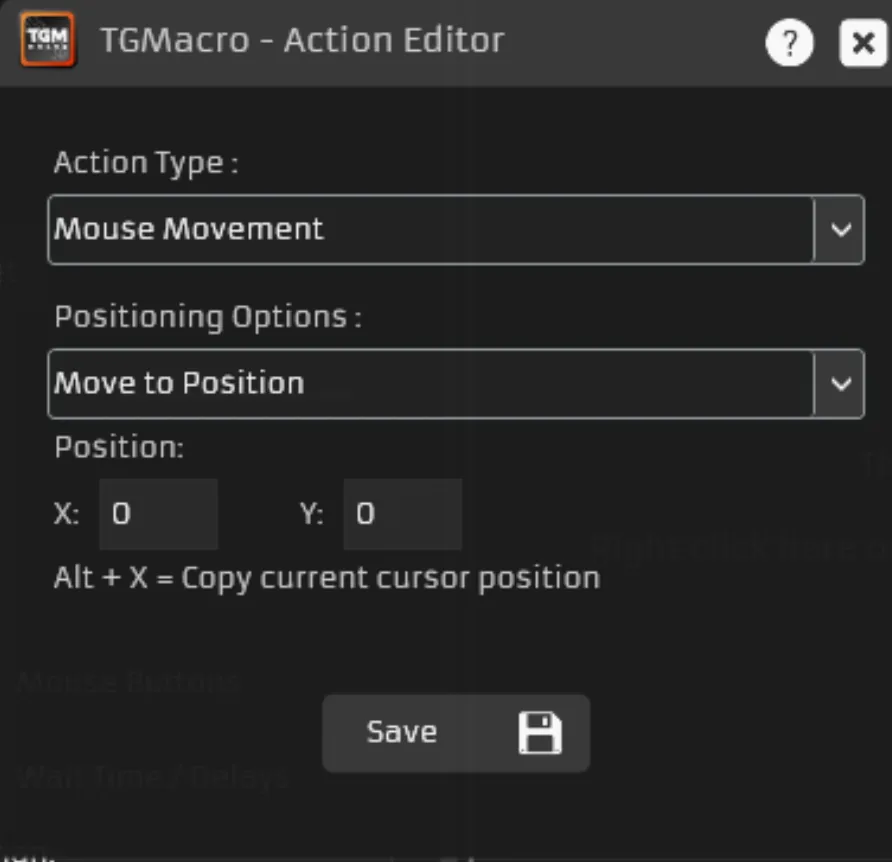
The app can save the cursor’s exact X and Y coordinates or record how far it moves from its previous position.
Exact coordinates work well when a button always stays in the same place. However, moving or resizing the target window may cause the macro to click the wrong area.
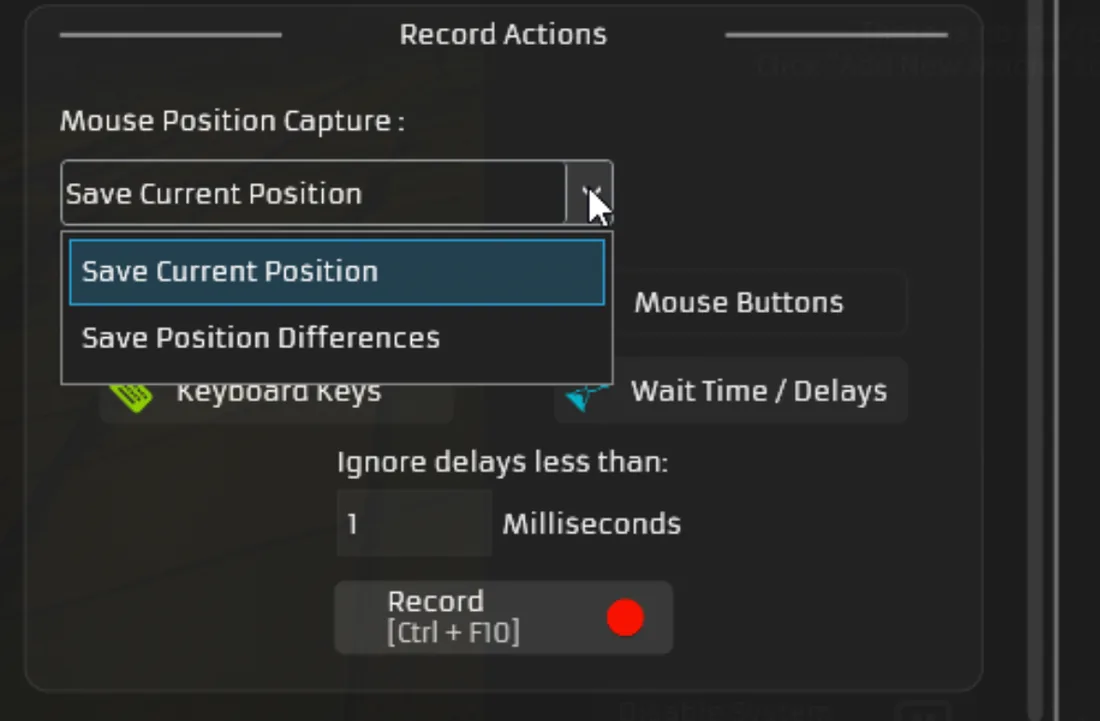
The built-in recorder captures keyboard and mouse activity while you perform a task. The shortcut shown in the software is Ctrl + F10.
Once recording stops, the captured commands appear in the editor. You can remove unwanted movements, fix the order, and adjust the delays.
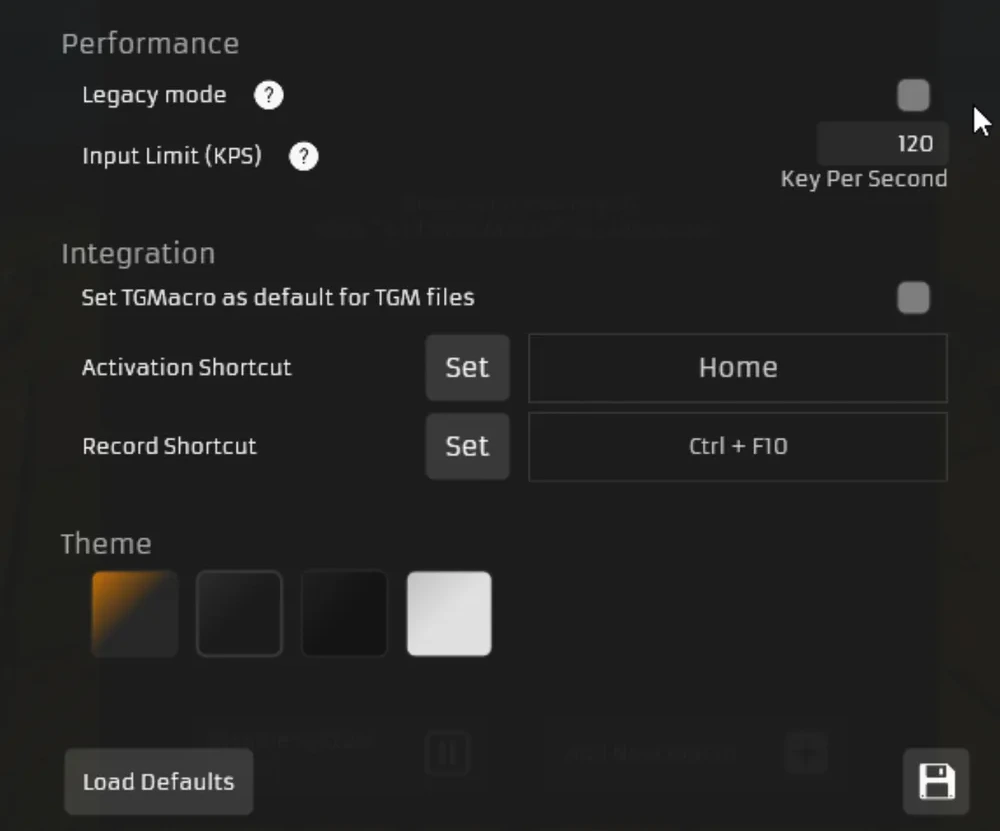
TG Macro can load the last macro on startup, hide in the system tray, play activation sounds, and support controller inputs.
It also includes an adjustable input limit and several dark and light themes. Some advanced settings, such as Legacy Mode, could use clearer explanations.
Supports keyboard, mouse, movement, and delay actions. Includes both live recording and manual editing, offers several trigger and loop options, and saves macro projects for later use.
The interface feels crowded for beginners, and exact mouse positions can fail when the target window is moved or resized.
Version 3.051 | 0.91 MB | Free
 Windows 7, 8, 10, 11
No installation required
Components
Requirements
The setup is short. Create a macro, set a trigger key, add your actions, then test it.
Open the software and click Add New Macro. Enter a name for the project.
Under Trigger by, choose Keystrokes / Button Inputs, click Set, and press your shortcut key. Then pick a loop mode — While Holding Key stops when you release the key; Until Key Pressed Again toggles on and off.
Add your commands using Keyboard Keys, Mouse Buttons, Mouse Movement, and Wait Time/Delays — or record the sequence live, then remove any accidental inputs.
Save the project, return to the main screen, make sure TG Macro is enabled, and press the trigger key to test. Start with a short macro — a few actions are far easier to fix than a long recording.
TG Macro is a useful Windows tool for automating repeated keyboard and mouse actions. Its strongest feature is the editor, which lets you review and adjust every command instead of starting again after a mistake. It has a small learning curve, especially when using advanced settings. For users who need more control than a basic auto-clicker provides, TG Macro offers a solid set of recording and editing tools.